How do I download a receipt of my payment?
This document explains how you can download a copy of any successful payment made through Payble.
Additional Information
| Before you start: After downloading the receipt, a copy of it will be stored on your device — from there, you can save, print, or move it to another folder. If you receive notifications of successful payments via email, you can also download a copy of the receipt using the link provided in the notification. To sign up for email receipts, see How to enable (or disable) email payment receipts. |
How-to
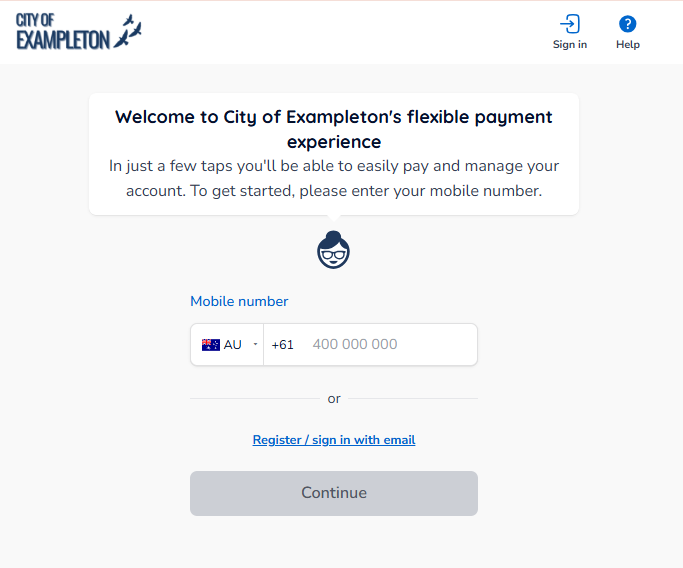
To download a receipt, sign in using the same authentication method used when making the payment (either mobile or email). You will not be able to view the payment if you haven’t authenticated with the exact same method.
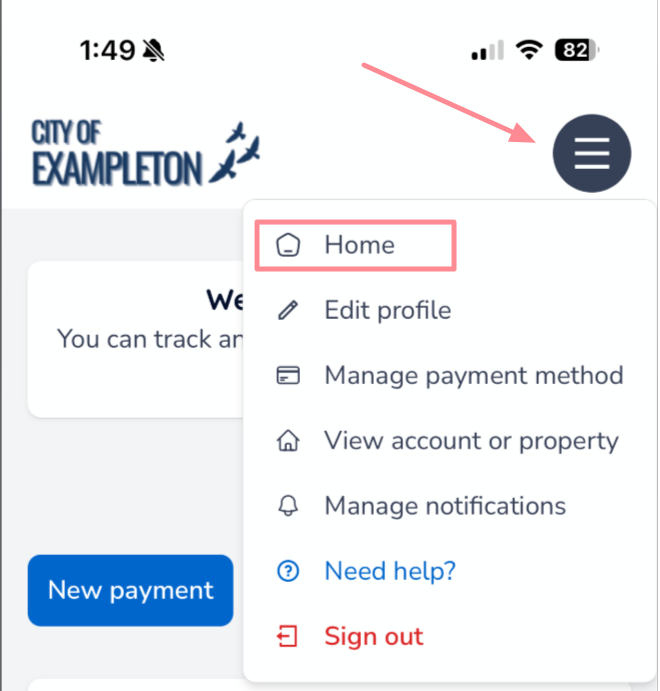
If your plans and payments don’t appear right away, click your council's logo at the top of the page to return to your profile, or use the Home button. On a desktop/laptop browser, the Home button is located on the top banner.
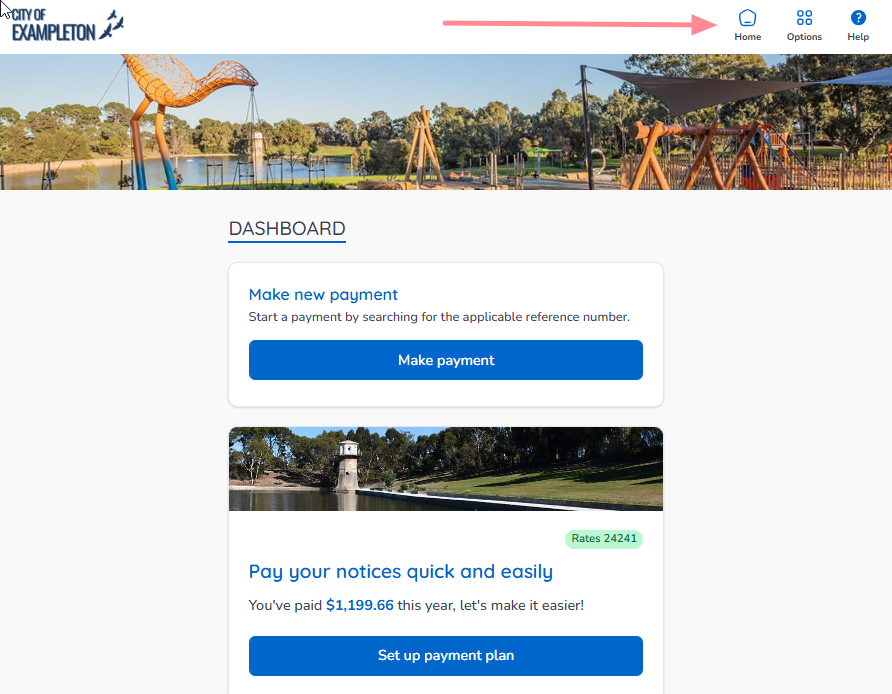
On a mobile or tablet browser, the Home button is located under the menu button.
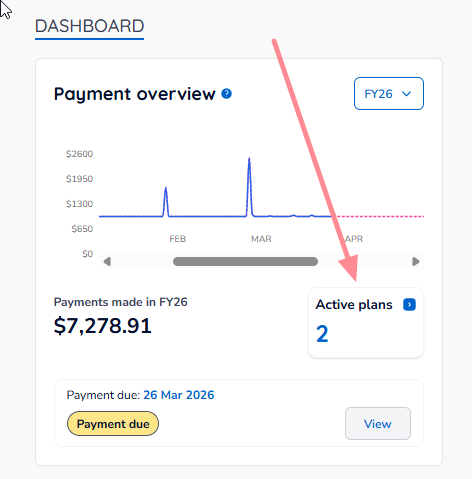
Once you are on your Home page, click the Active Plans box.
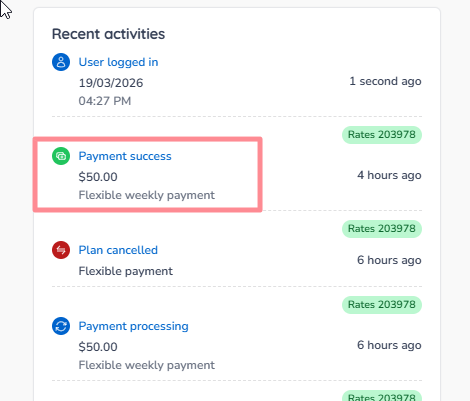
Alternatively, click on a Payment success event within the Recent Activities list.
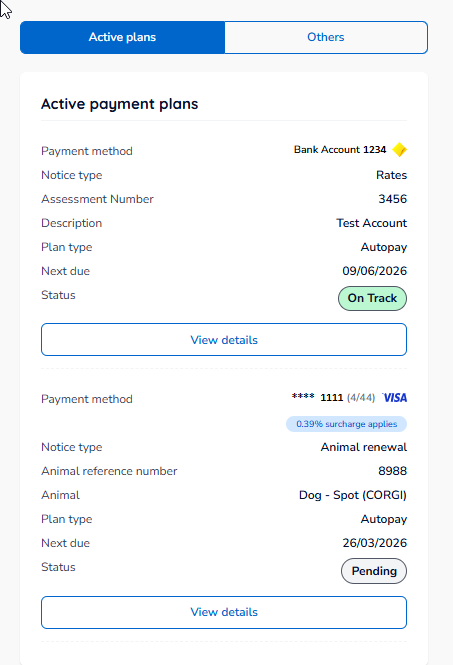
Select your plan from the listing by clicking the View details button – if the plan has been completed or cancelled, or it was a one-off payment, you'll find it on the Others tab at the top of the window.
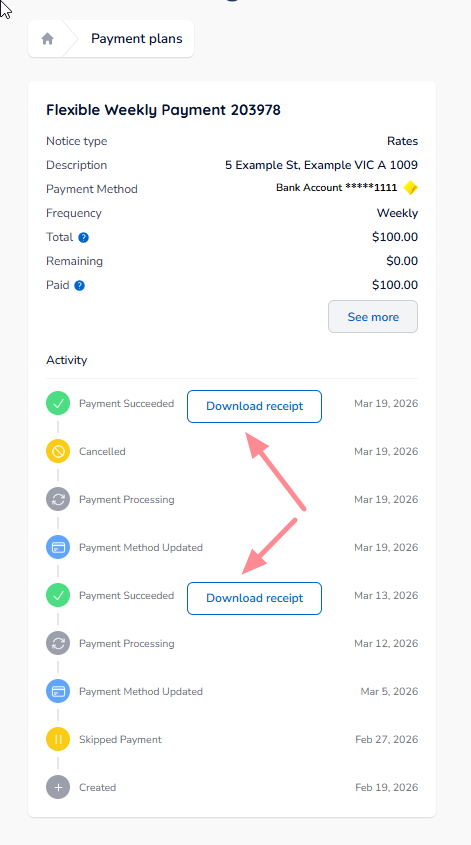
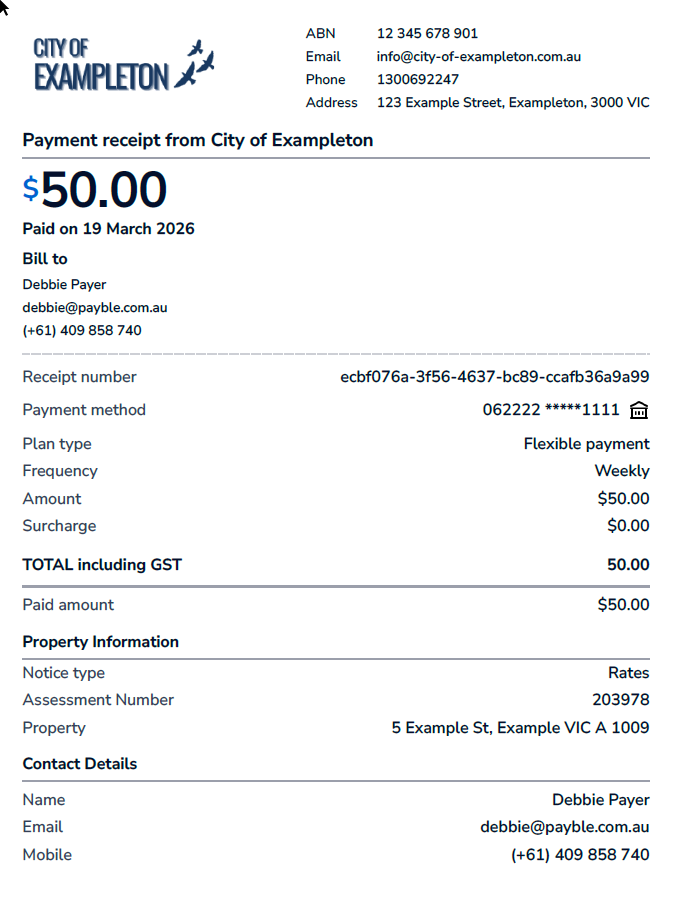
Shown on the screen will be the plan summary, along with a listing of all activity on the plan. Click Download receipt to obtain a PDF of the payment details. An example is provided below.