How do I link a new property or pay a different account type?
Payble can be used to manage payments for a range of council services, including rates, infringements, water rates, water or utility usage, and other services if offered by your council.
This article explains how you can have multiple items – such as properties, infringements, or registered animals – all linked to your Payble profile, with each item potentially on a different Payble payment plan.
Additional Information
| Before you start: You'll need your property, assessment, infringement or account number from your council — Payble is unable to provide these details. If you have accounts with more than one council, you can only view items for the council you're currently signed in to; you'll need to sign in separately to each council's Payble environment. There are three ways to link a new item, covered below: scanning a QR code, navigating from your council's website, or linking a new item after signing in. |
What if I don't know my property, assessment, infringement or account number?
You will need to contact your council to obtain the relevant number. Payble is unable to provide you with these details.
Using Payble across multiple councils
If you own properties or have accounts with more than one council area, you will only be able to view items for the council you are currently signed in to. To view or manage items from another council, you will need to sign in to that council's Payble environment separately. The easiest way to do this is by accessing Payble through the relevant council's website.
Option 1 – Scanning QR code
The simplest method to link a new property or different account is to scan the QR code on your notice. Scanning the QR code will take you straight to where you need to be, whether this is creating a new plan or making a one-off payment.
You will need to enter a mobile number or email address (if supported by your council) to receive a one-time password code for signing in.
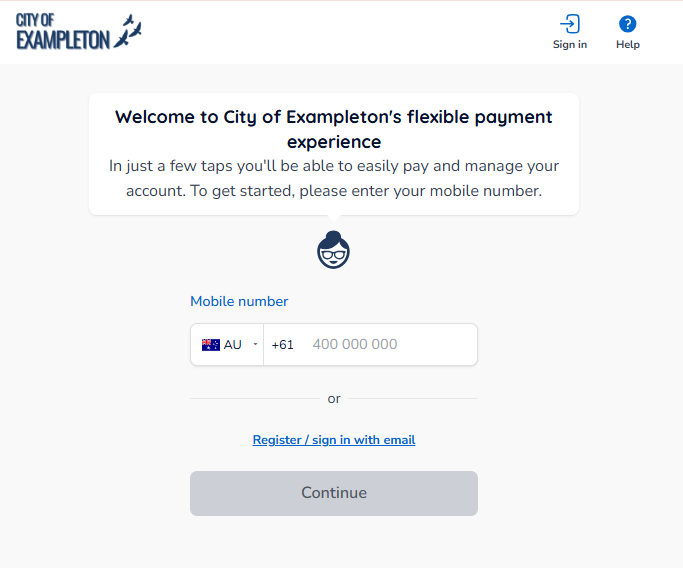
After you finish the authentication process, you'll be taken to the account summary page, where you'll see the outstanding balances for the account connected to the QR code you scanned.
Option 2 – Navigating from the council's website
Visit the Payble link directly from your council's webpage. You will be redirected to the Payble application and prompted to sign in using either a mobile number or email, if enabled.
After you authenticate, you will be prompted to search for your account; the reference will vary depending on the type of account you are searching for, but typically, you will find this on your notice. If you haven't scanned a QR code, select the Account Type and enter the reference, then click Lookup Account.
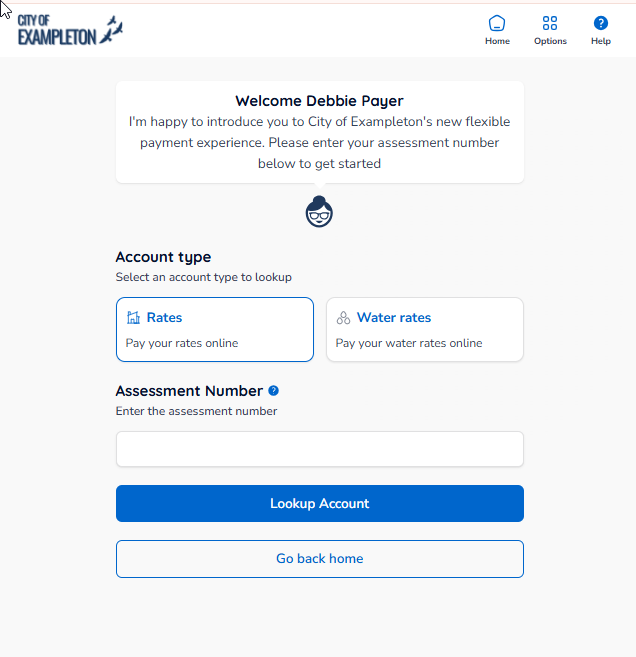
You'll be taken to the account summary page, where you'll see the outstanding balances for the account you searched for.
Option 3 – Linking a new property, infringement or animal renewal after signing in
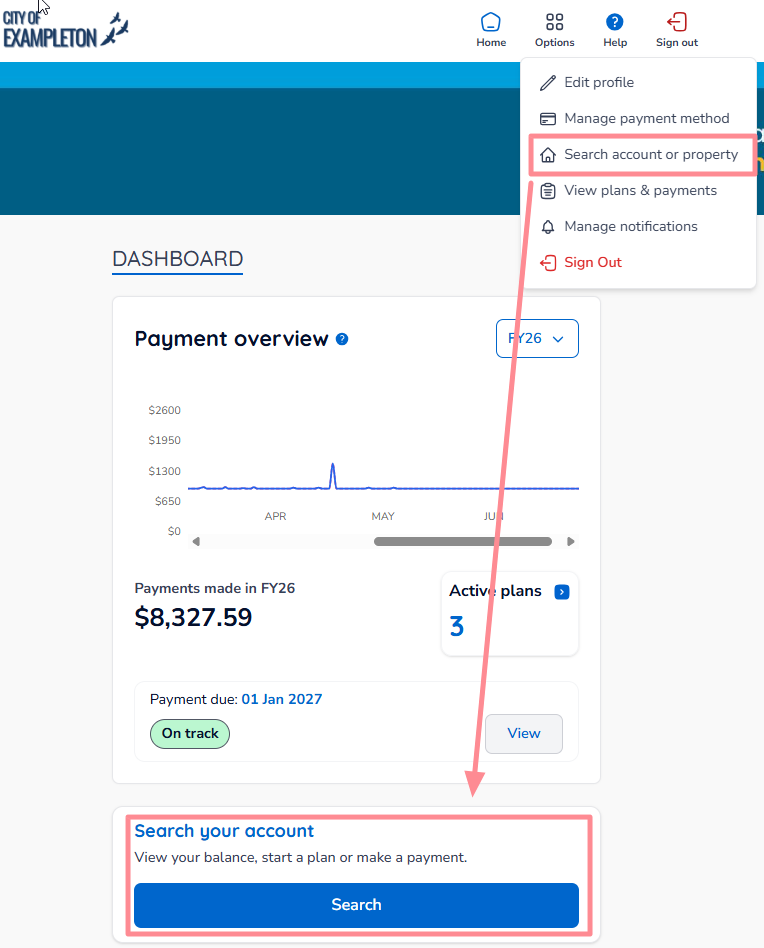
If you already have an account linked to your profile, click the Options button in the top-right corner after signing in to Payble. Then click View account or property, or the Search button from the dashboard.
You will be prompted to select your account type from the list of available tiles. Select the Account type, and then click Next.
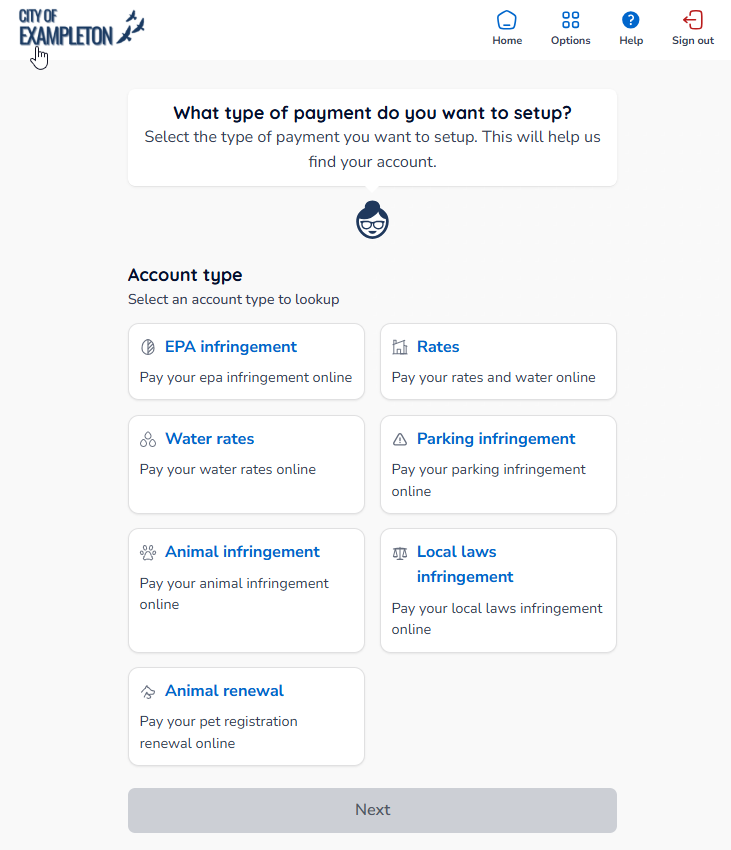
Enter your account number (this may be a property ID, assessment number, account number, or infringement notice number) depending on the account type selected.
Click Lookup Account to search for the account and begin the payments process.