How do I change my Payble contact details?
Updating your information in Payble is simple, but there are some restrictions depending on how your account was created initially.
Additional Information
Before you start: There are a few restrictions to be aware of before updating your details.
|
How-to
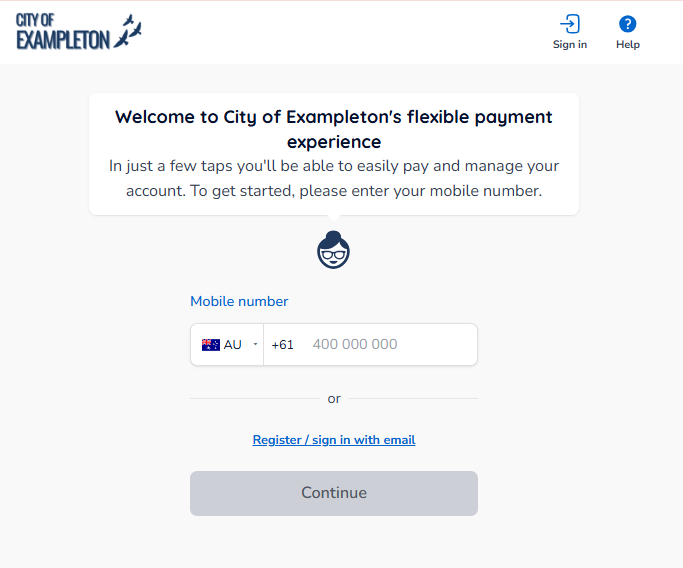
To make changes to your Payble profile, sign in using the same authentication method you used when setting up your plan (mobile or email). You can get to Payble by going to your council's website and searching for Payble, or by scanning a QR code on a notice.
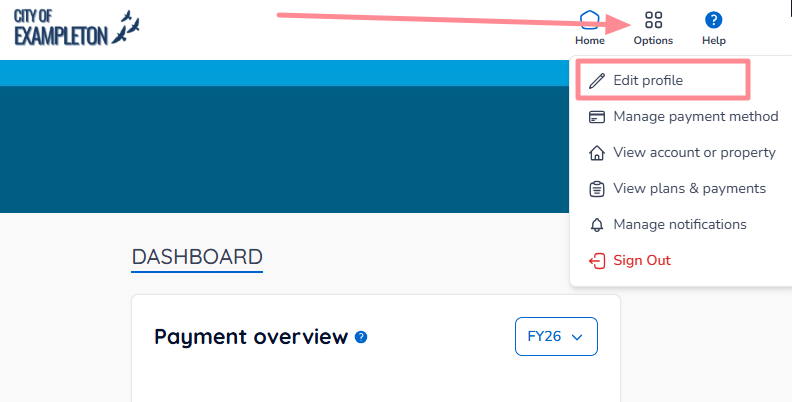
After you have signed in, select Options from the top banner, then Edit profile.
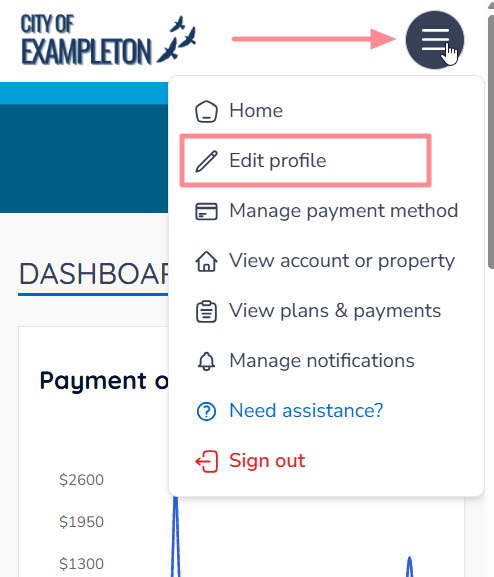
On a mobile or tablet browser, the Edit profile button is located under the menu button.
This takes you to the Profile Information screen.
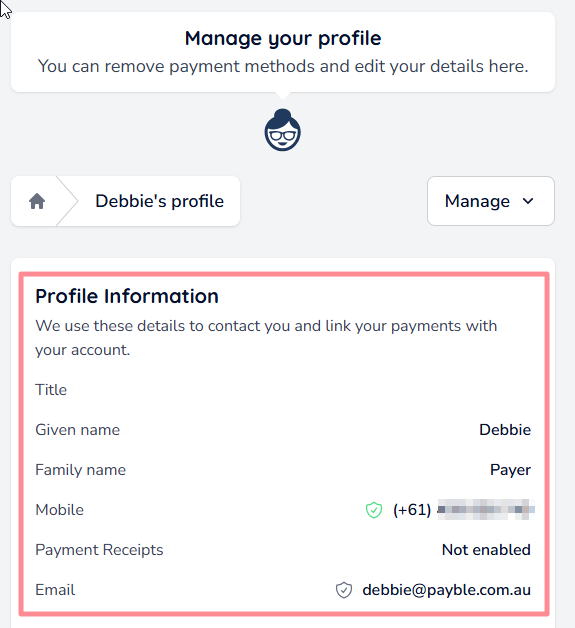
From the Manage drop-down menu on the profile screen, select Edit Details.
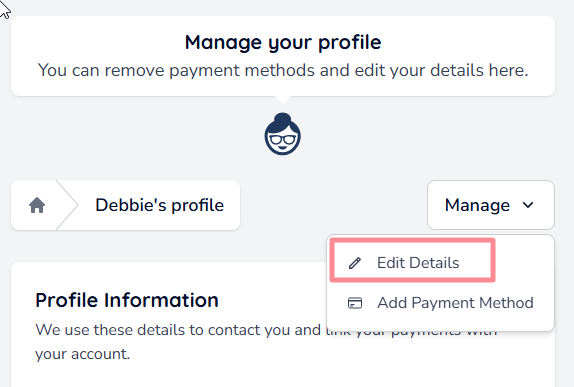
Update your information as needed.
| Tip: Remember, your mobile number or email cannot be changed if it’s your authentication method — this is how you sign in to Payble. |
Click Save Profile to confirm any changes.