How do I skip a payment?
Some Payble payment plans allow you to skip an upcoming payment. This option is only available on certain plan types and may not appear for every plan.
Additional Information
Before you start:A few things to note about skipping a payment.
|
How-to
To make changes or view your plan in Payble, sign in using the same authentication method you used when setting up your plan (mobile or email). You will not be able to view your plan if you haven’t authenticated with the exact same method.
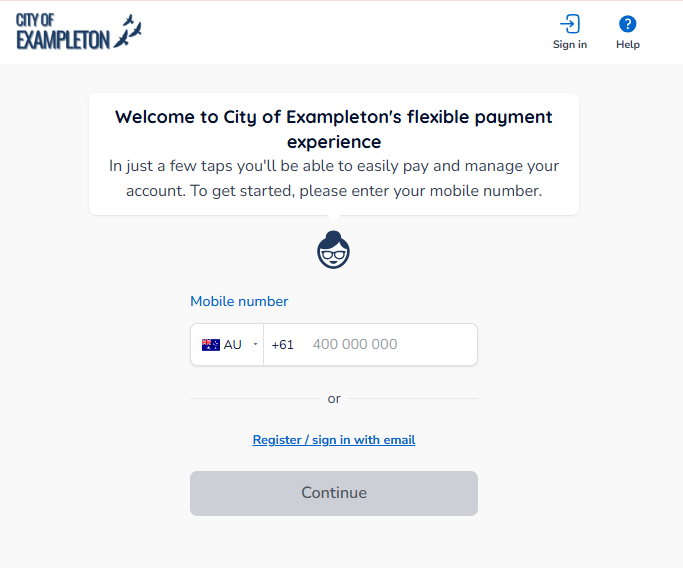
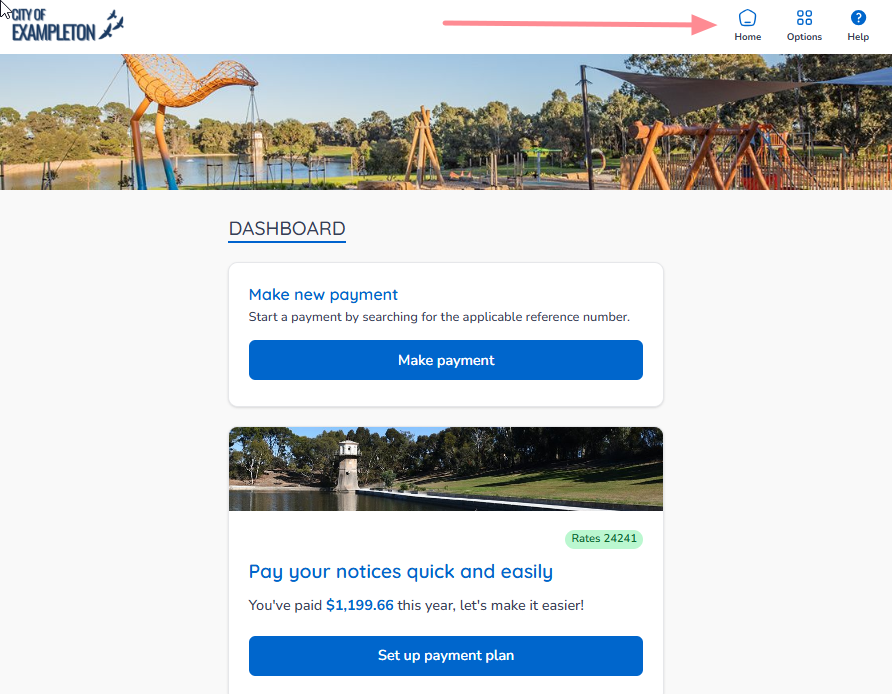
If your plans and payments don’t appear right away, click your council’s logo at the top of the page to return to your profile, or use the Home button. On a desktop browser, the Home button is located on the top banner.
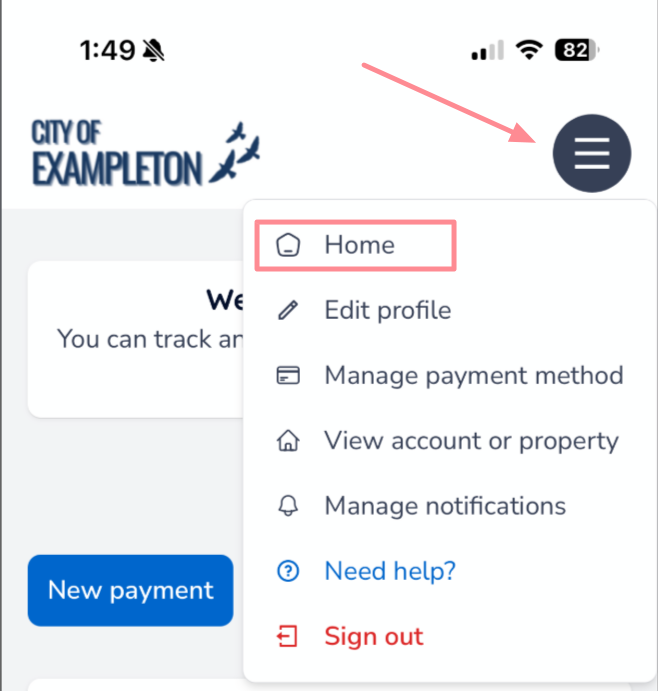
On a mobile or tablet browser, the Home button is located under the menu button.
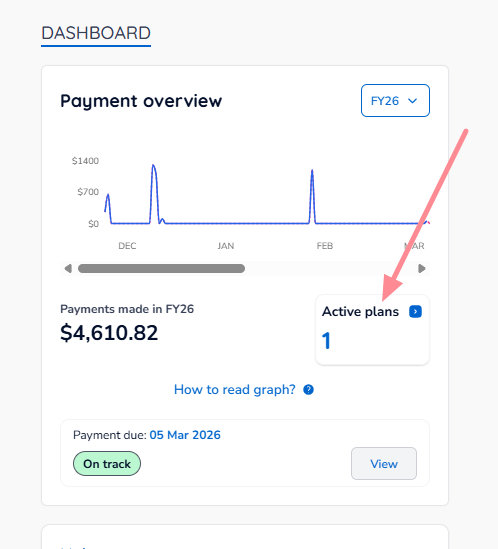
Once you are on your Home page, click the Active Plans box.
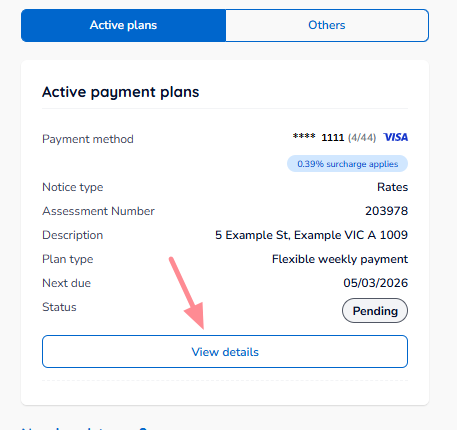
Scroll to the plan you want to modify, then click View details.
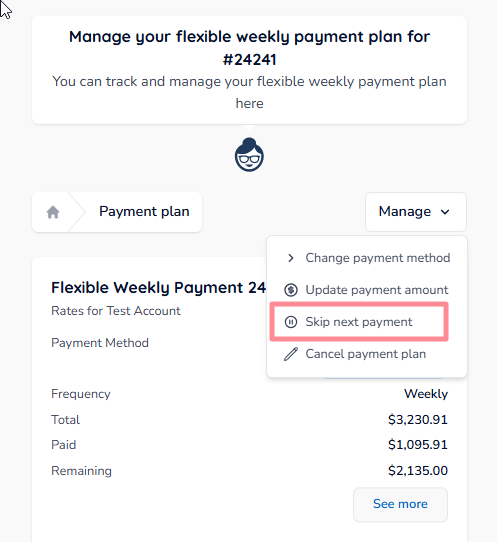
Click or tap Manage, then select Skip next payment.
A screen will appear showing you the updated schedule for your plan, and the terms applicable for the skip process.
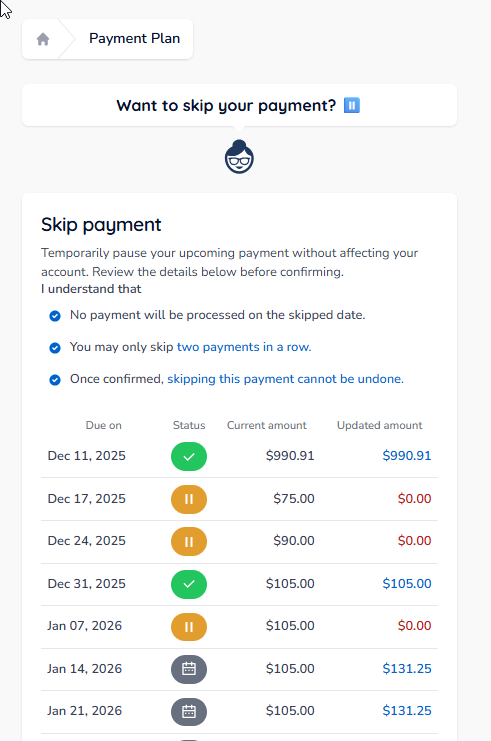
Scroll to the bottom of the page, and click Confirm Skip to process.
The payment has been skipped.
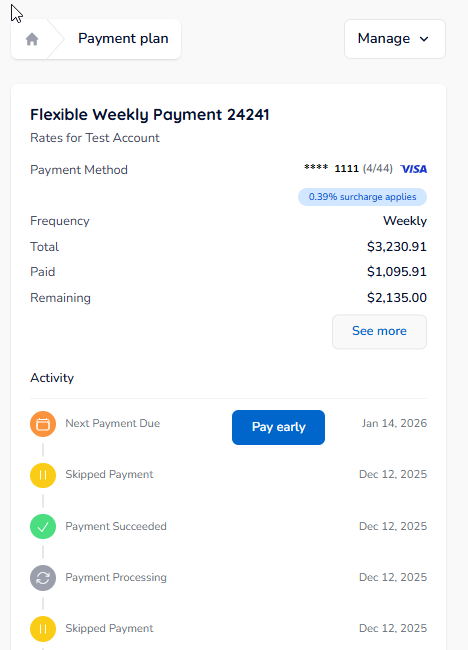
You will also receive an SMS confirming that you have skipped the payment.
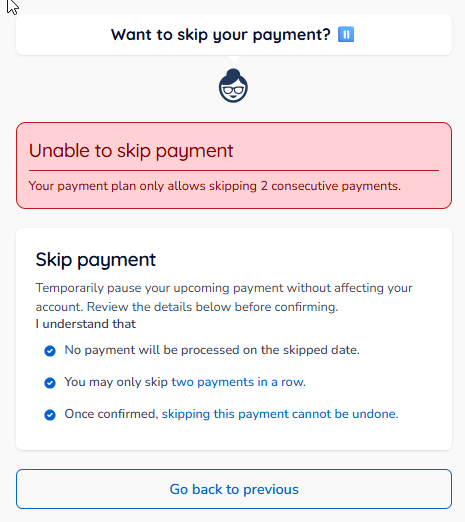
| Tip: After you have reached the maximum skips permitted for your plan, the following screen will appear — you must make a payment before you can skip again. |