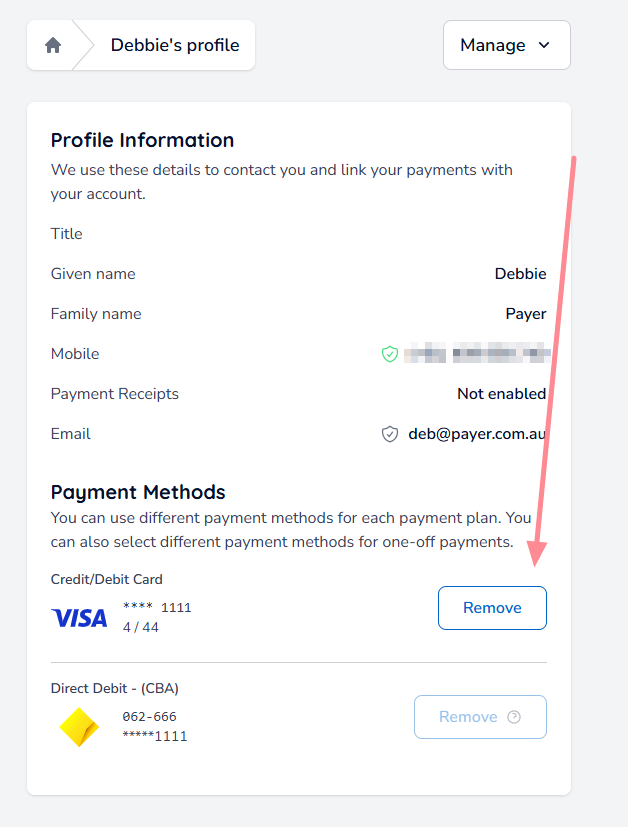
How Do I Remove a Payment Method?
Additional Information
| Before you start: You can't remove a payment method that's linked to an active payment plan. If you need to, add a new payment method and update your plan to use it first. You'll also need to sign in with the same method (mobile or email) you used when you set up your plan. Otherwise, your plan won't appear. |
Keep your Payble profile tidy by removing payment methods you no longer use. There are two ways to do it, and both take only a few clicks.
Sign in with the same method you used when you set up your plan, either mobile or email. If you sign in a different way, you won't be able to see your plan.
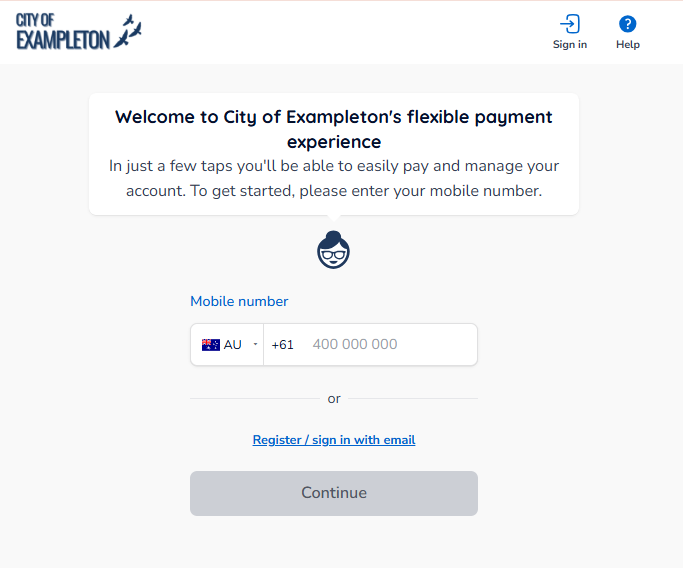
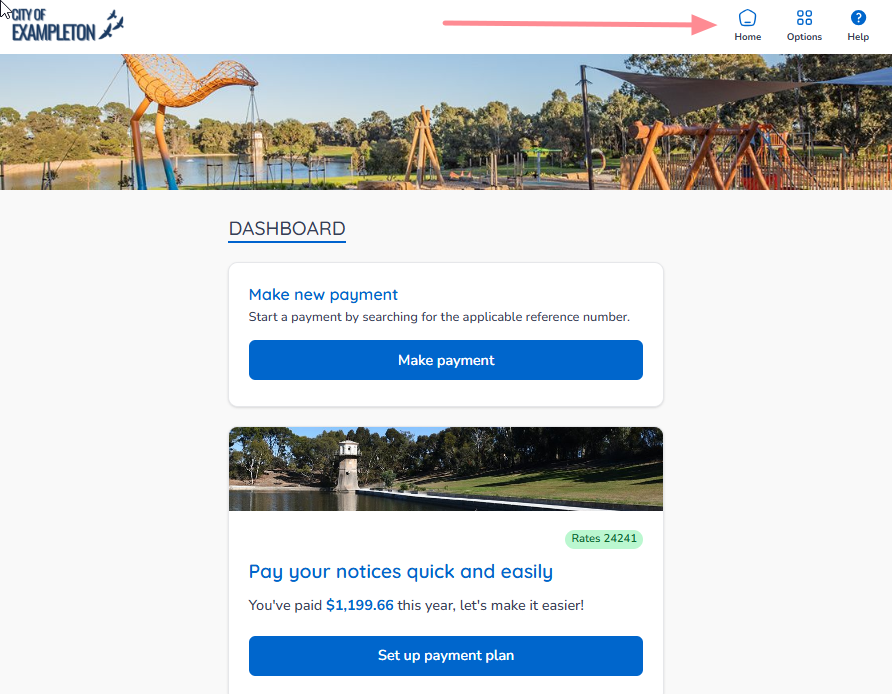
If your plans and payments don't appear straight away, click your Council's logo at the top of the page or the Home button to return to your profile.
On a desktop browser
The Home button is on the top banner.
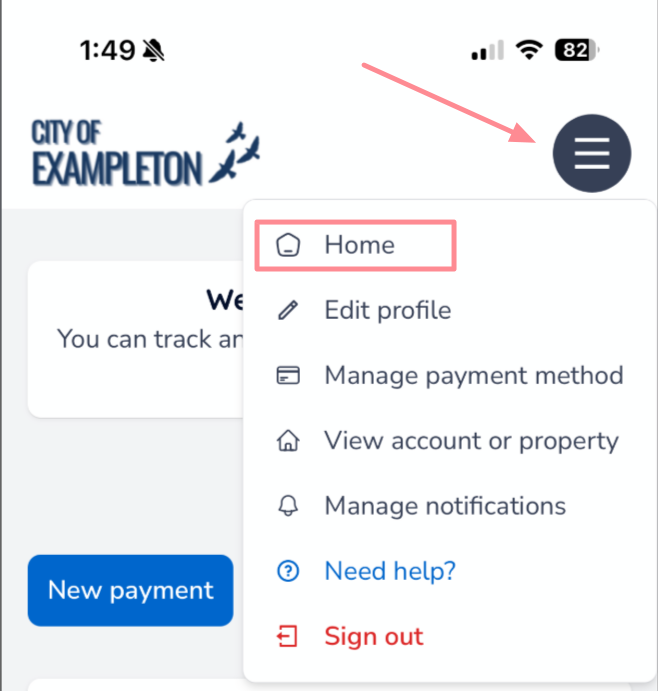
On a mobile or tablet browser
The Home button is under the menu button.
Once you've signed in as described in Phase 1, choose either option below. Both give the same result.
Option A — Manage Payment Methods
Click Options in the top-right corner of the page, then select Manage payment methods. On a mobile device, the Options button is under the menu button, as shown in the previous image.
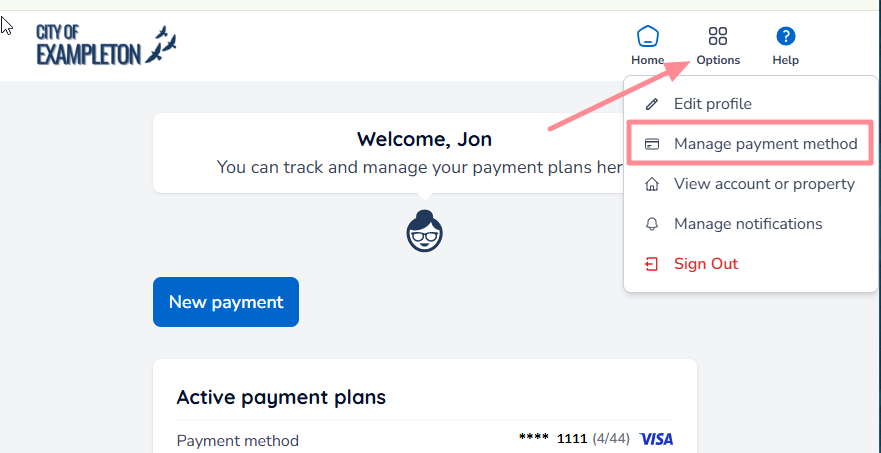
A list of your payment methods will appear.
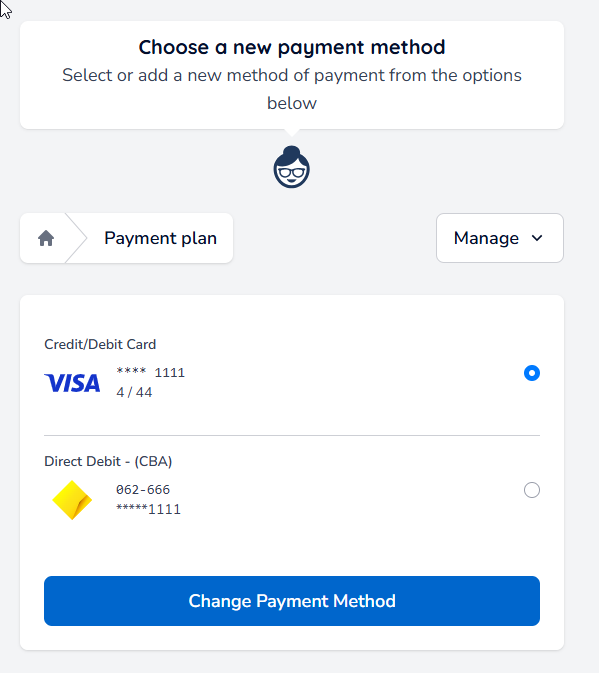
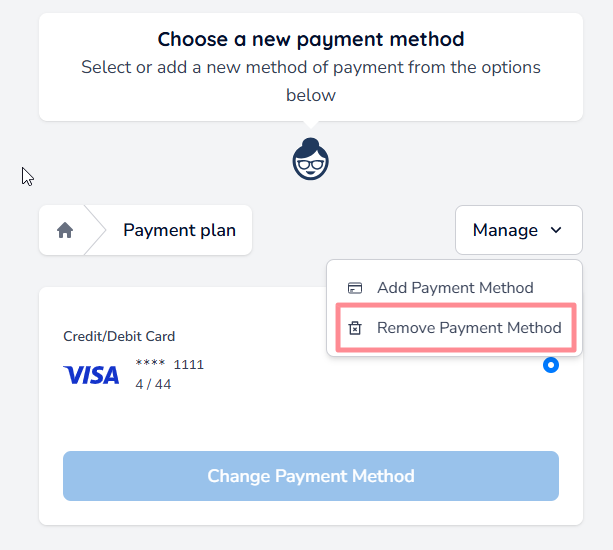
Click Manage next to the payment method, then Remove Payment Method.
Option B — Edit Profile
Click the Options button on the top banner, then click Edit profile.
Your profile details and payment methods will appear. Click Remove next to the payment method you want to delete. You can't remove a payment method that's attached to an active plan.