Understanding the Managing Agents Dashboard
As a managing agent, the Managing Agents Dashboard gives you a single place to see every property you manage for a council, check what's currently owed on each one, and stay on top of new notices as they're issued — without needing to contact the council for an update.
- Your portfolio at a glance
- Properties tab
- Property details and balances
- Notices tab
- Digital notice settings & Secondary contacts
- Removing a property you no longer manage
Your portfolio at a glance
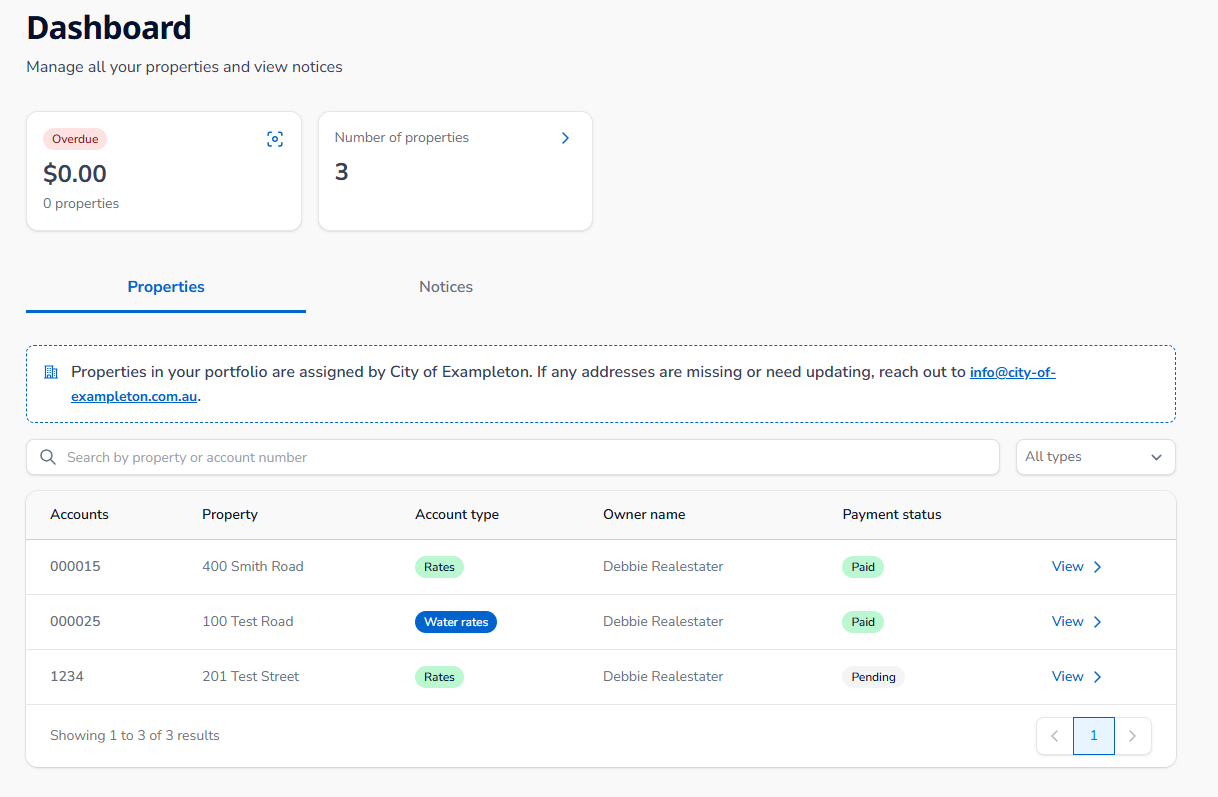
At the top of the dashboard, two summary tiles give you a snapshot of your whole portfolio: total overdue balance (with how many properties it's spread across), and the total number of properties currently assigned to you.
| Tip: These tiles double as quick filters. Click into either one and the properties list below will filter to match — for example, clicking the overdue tile shows only the properties in your portfolio that currently have an overdue balance. |
Properties tab
The Properties tab lists every property currently in your portfolio, with the account number, property address, account type (such as Rates or Water rates), agent name, and payment status for each property. Use the search bar to find a property by address or account number, or use the type dropdown to filter the list down to a specific account type.
Properties are assigned to your portfolio by the council, not by you — if a property is missing or an address needs updating, you'll need to contact the council directly rather than adding it yourself.
Property details and balances
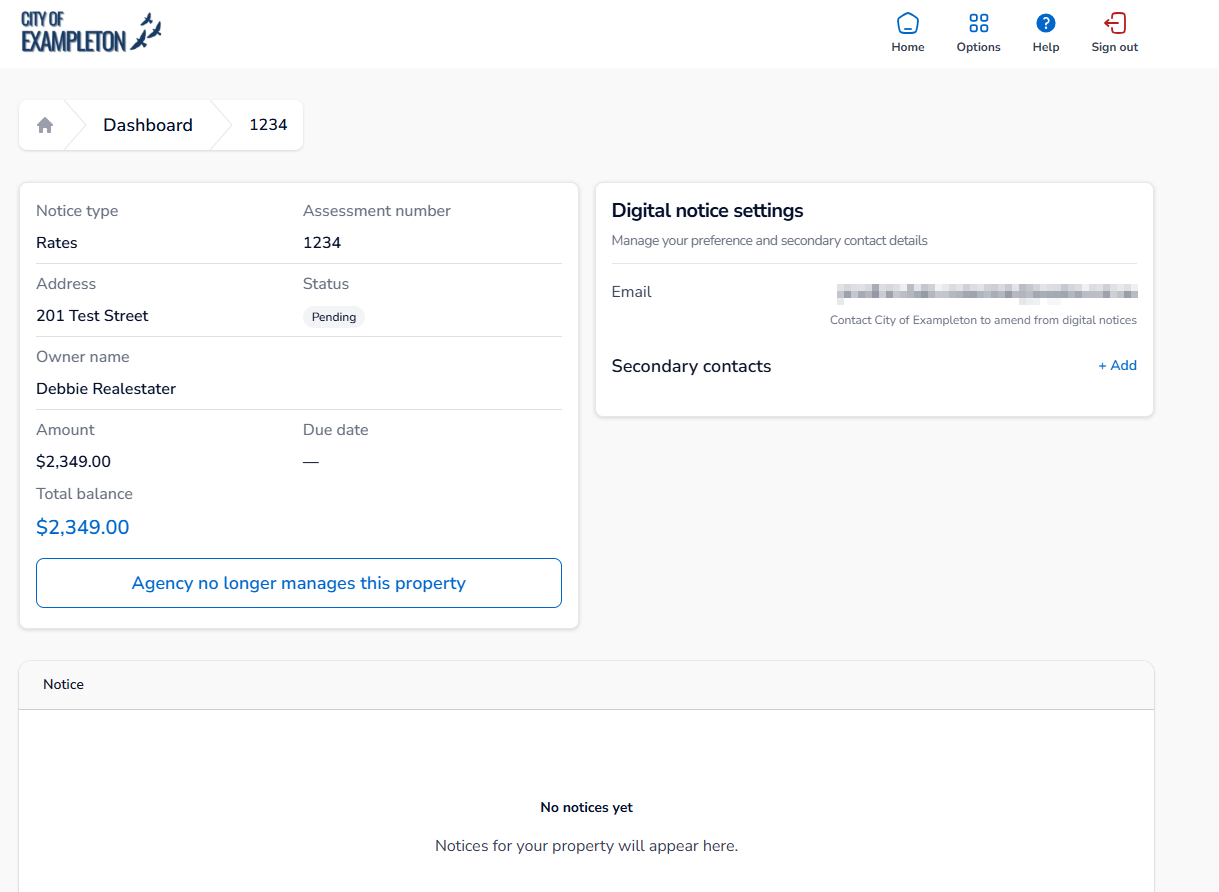
Select View on any property to open its full details. This is where you'll find the property's current financial status — the amount currently due, its due date, and the total balance owing — alongside the notice type, assessment number, address, owner name and payment status, all in one view. It also lists every notice that's been issued for that specific property.
| Payment status | What it means |
|---|---|
| Paid | The account is up to date, with nothing currently owing. |
| Pending | A payment or notice is in progress but not yet due or overdue. |
| Overdue | The due date has passed and a balance is still outstanding. |
Notices tab
The Notices tab brings together every notice issued across your whole portfolio in one list, showing the account number, property, notice type, notice name, due date and amount for each. Like the Properties tab, you can search by property, account number or owner name, and filter by notice type.
| Before you start: Only notices generated from the point a property comes under your agency's management onward will appear on this dashboard. Notices issued before your agency took over management of a property won't be shown. |
Digital notice settings & Secondary Contacts
On each property's detail page, the Digital notice settings panel shows the email address that notices for that property are sent to. To change this address, you'll need to contact the council — it can't be edited directly from the dashboard. You can, however, use Add under Secondary contacts to add extra email addresses, so colleagues or the property owner also receive a copy of each notice.
Removing a property you no longer manage
If your agency stops managing a property, open its details and select Agency no longer manages this property.
You'll be asked to confirm before it's removed from your portfolio.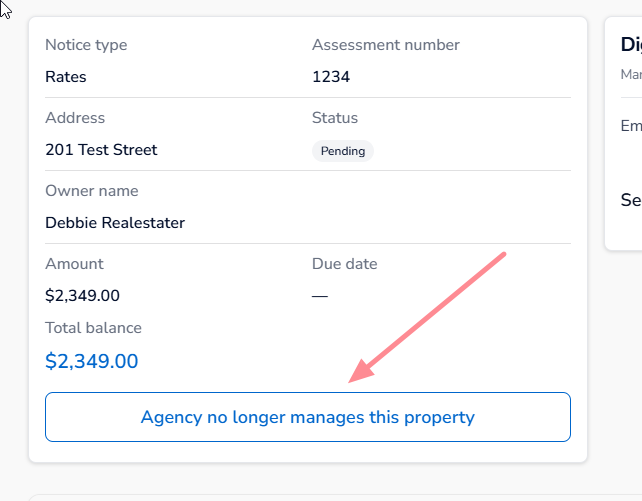
| Tip: This is a one-way action from your side — if the property needs to be added back to your portfolio later, you'll need to contact the council directly, as agents can't re-add a property themselves. |